Getting a Printer onto Wi-Fi Without Guesswork
Wireless printing works best when you understand what the printer needs from your network, and what it does not.
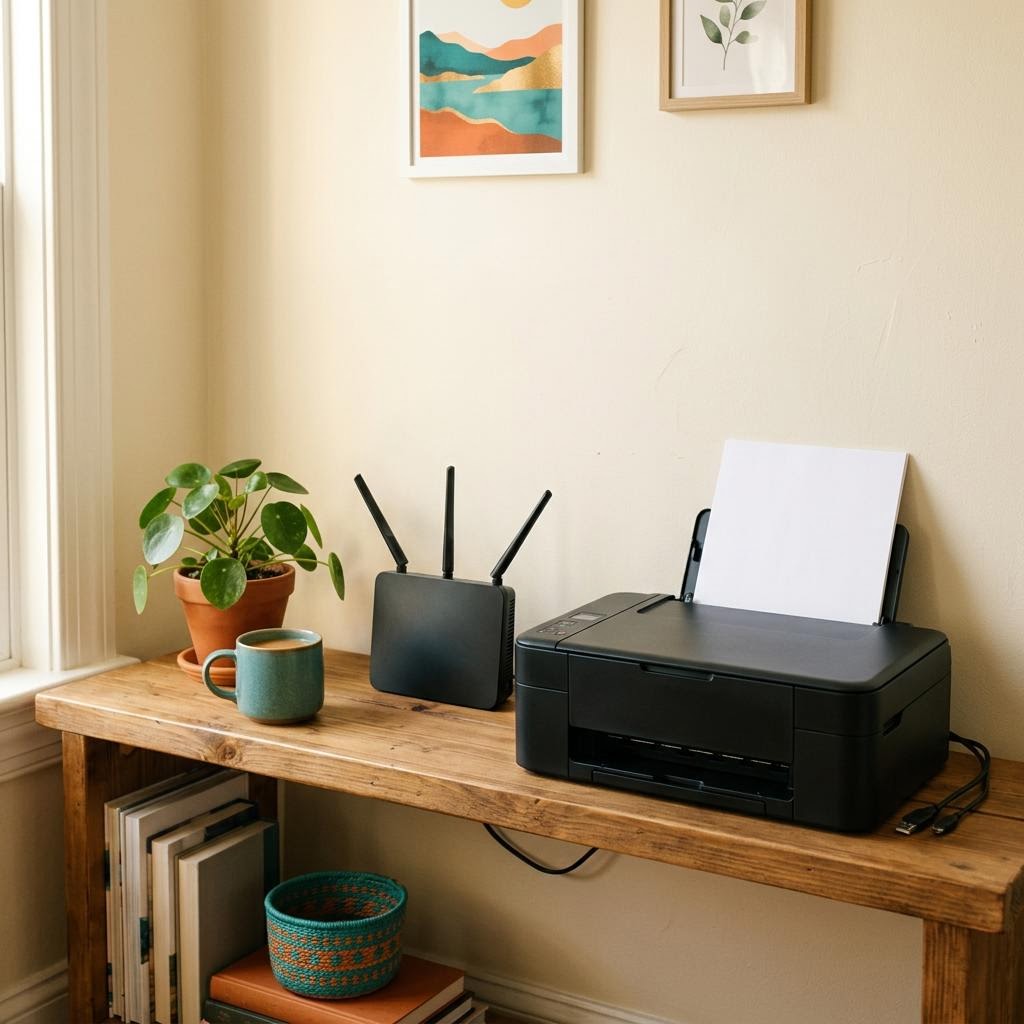
A wireless printer is just another device on your home network, like a phone or a smart speaker. To print, your computer needs to find it on that network and send data to it. Almost every Wi-Fi printing problem comes down to one of those two steps: discovery or delivery.
What the printer needs to join
- The exact network name and password. Passwords are case-sensitive, and printer keypads make typos easy.
- A network it supports. Some printers only use the 2.4 GHz band; if your router combines bands under one name, the printer will simply connect on the band it understands.
- Reasonable signal. A printer behind thick walls or inside a cabinet may connect but drop off intermittently.
A note on 2.4 GHz and 5 GHz
It is a common belief that a computer on 5 GHz cannot print to a printer on 2.4 GHz. On a normal home network that is not true: both bands usually belong to the same local network, and devices talk across them without trouble. The band only matters when the printer itself cannot join a particular band, or when the two names belong to genuinely separate networks.
What does block communication is isolation. Guest networks, and settings often called client isolation or AP isolation, deliberately stop devices from seeing each other. If your printer or your computer is on a guest network, discovery will fail even though both show strong signal.
Ways printers join a network
- Using the printer's own control panel to choose a network and enter the password.
- A manufacturer setup app or utility, which often guides the process step by step.
- WPS push-button pairing, only if both your router and printer support it and it is enabled. Many routers disable it by default.
- Temporary direct connection, where the printer briefly creates its own small network for setup.
After it connects
Print a network configuration page from the printer. It shows the network name it joined and the address it received. If that network name matches your computer's and the address looks like your other devices, you are ready to add the printer on your computer. If it lands on a guest network, move it to the main one.